Configuring one-time password (OTP) authentication
This section explains how to configure a one-time password authentication method (OTP or TOTP) to set up SSL VPN tunnels with the SNS firewall.
General information on OTP authentication
OTP authentication strengthens the authentication of users who set up SSL VPN tunnels with a second authentication factor.
The second factor is a one-time password, known as an OTP or TOTP, which the user must enter in addition to their password to set up the SSL VPN tunnel. Stormshield has its own OTP authentication solution.
A third-party solution can also be used with a RADIUS server. For example, the Trustbuilder solution (formerly inWebo) is compatible and allows users to generate OTPs or approve setting up connections (push notifications) in an application that is installed on a trusted device.
Configuring the selected OTP authentication solution
Stormshield TOTP solution
Refer to the technical note Configuring and using the Stormshield TOTP solution, which explains how to configure and manage the TOTP solution on the SNS firewall, and presents the enrollment procedure for TOTP solution users.
Third-party OTP solution with a RADIUS server
The chosen third-party OTP authentication solution has to be configured and connected to your RADIUS server. If you need help with this configuration, refer to the documentation for your chosen solution.
On the SNS firewall:
- Enable and configure the RADIUS method to connect your SNS firewall to your RADIUS server. To do so, go to Configuration > Users > Authentication, Available methods tab. For more information, refer to the section Authentication > Available methods tab > RADIUS in the v4 user guide or v5 user guide, depending on the SNS version used.
-
Increase the maximum response time for RADIUS requests if the selected solution requires users to approve the setup of their SSL VPN tunnels in an application. The default maximum response time is 3 seconds. To increase it to 30 seconds, for example, use the following CLI/serverd commands:
CONFIG AUTH RADIUS timeout=30000 btimeout=30000
CONFIG AUTH ACTIVATE
Setting up SSL VPN tunnels using OTP authentication
In the Saved connections menu
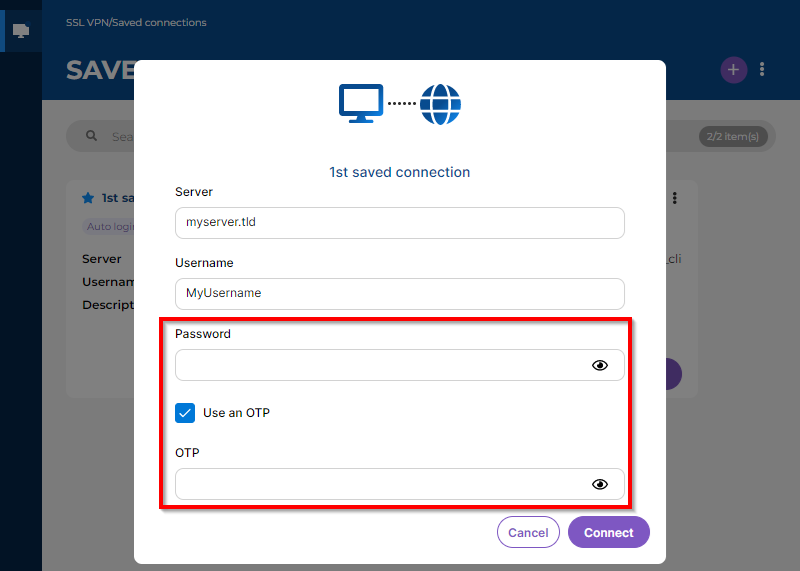
The Use an OTP checkbox must be selected in advance in the details of the saved connection.
-
Click on Connect in the section of the connection in question.
-
Fill in the Password and OTP fields, depending on whether your authentication solution requires a password and/or OTP.
The following combinations are possible:
Password field OTP field  Value entered (*) Value entered
 Empty field Value entered Empty field Empty field
(*) The Password field does not appear if it was saved in the details about the saved connection.
-
Click on Connect.
-
If your authentication solution requires approval of the SSL VPN tunnel setup in an application (with the Password and OTP fields left empty), a push notification will be sent to your trusted device. Open your application and approve the setup of the SSL VPN tunnel.
-
Wait while the Stormshield SSL VPN client sets up the SSL VPN tunnel.
In the Direct connection menu
- Select the connection mode. If necessary, refer to the section Description of connection modes and available fields in the Stormshield SSL VPN client user and configuration guide.
- Select the Use an OTP checkbox.
-
Fill in the Password and OTP fields, depending on whether your authentication solution requires a password and/or OTP.
The following combinations are possible:
Password field OTP field Value entered Value entered Empty field Value entered Empty field Empty field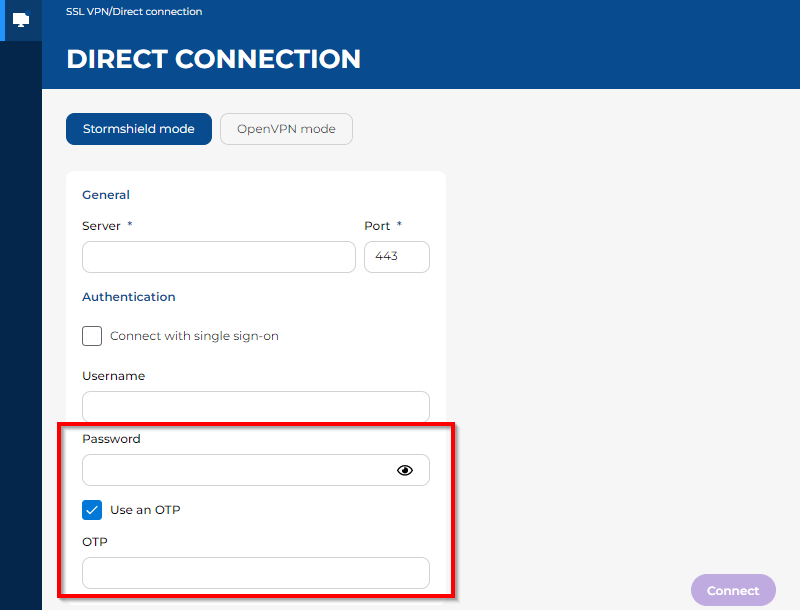
-
Click on Connect.
-
If your authentication solution requires approval of the SSL VPN tunnel setup in an application (with the Password and OTP fields left empty), a push notification will be sent to your trusted device. Open your application and approve the setup of the SSL VPN tunnel.
-
Wait while the Stormshield SSL VPN client sets up the SSL VPN tunnel.