Updating BIOS from the web administration interface
This section describes the procedure for updating BIOS on an SN-L-Series (SN-L-Series-2200 and SN-L-Series-3200) model firewall to version R1.07 from the web administration interface.
Required equipment
-
A computer with access to the SN-L-Series firewall's web administration interface from a compatible web browser.
Important information regarding certain SNS firewall features
These features need to be configured again after a BIOS update:
-
Password to access the UEFI control panel: if one has been configured, it will be deleted if BIOS is being updated from version R1.02. You will need to set it again. As of version R1.05 or R1.06, passwords will be retained.
-
TPM module: if you have initialized the TPM module, the features that use certificates for accessing or administering the SNS firewall (VPN, SNS firewall managed by an SMC server, etc.) whose private key is protected by the TPM module will no longer be operational. You must remove this protection before updating the BIOS of the SNS firewall, refer to the section Managing protection on private keys in SNS firewall certificates in the technical note Configuring the TPM and protecting private keys in SNS firewall certificates. After the BIOS update, you will need to reseal the TPM module and then protect the private keys of the previously deleted certificates.
These procedures are described in the section Required operations following an update.
Downloading the BIOS update file
- In your Mystormshield area, go to Downloads > STORMSHIELD NETWORK SECURITY > TOOLS > STORMSHIELD NETWORK SECURITY - TOOLS.
- Download the .maj file SN-L-Series_BIOS_R107_remote_update by clicking on its name.
-
Verify the integrity of the downloaded file using its SHA256 hash:
1da8113dad0a052231e938c75e82d7179cf40d61c6ec2595c7e5f2e3d95e5e86
The downloaded .maj file contains the BIOS update and Intel Management Engine firmware.
Updating BIOS and the Intel Management Engine firmware
Checking the current BIOS version
As of SNS versions 4.8.13 LTSB and 4.3.41 LTSB, the BIOS version can be checked in the CLI console:
- In the SNS firewall's web administration interface, go to Configuration > System > CLI console.
-
Enter the command:
SYSTEM PROPERTY
The BIOSVersion configuration token should show version R1.02, R1.05 or R1.06.
In earlier SNS versions, the version has to be checked in the console or SSH:
- Log in to the SNS firewall system in console or SSH mode.
- Authenticate by using the admin account on the SNS firewall system.
-
Enter the command:
dmidecode -s bios-version
The SNS firewall should show version R1.02, R1.05 or R1.06.
Updating BIOS and the Intel Management Engine firmware
IMPORTANT
The update process is automatic and lasts around five minutes. Once the process is run, it must never be interrupted, and the SNS firewall must not be disconnected from the power supply. If this occurs, the SNS firewall will be completely unable to run.
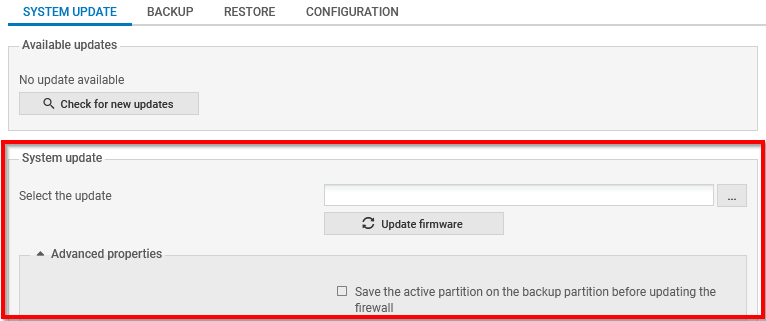
- In the SNS firewall's web administration interface, go to Configuration > System > Maintenance, System update tab.
- Select the update file (.maj) that was downloaded earlier.
- Expand the Advanced properties section, and unselect Save the active partition on the backup partition before updating the firewall.
-
Click on Update firmware.
-
Wait while the update proceeds. A pop-up window indicates the progress of the update. During the update, the SNS firewall will restart several times. This is completely normal.

By going back to the page to connect to the firewall's web administration interface, the SNS firewall will indicate that the update is complete.
Required operations following an update
Once the update is complete, launch the following operations, in this order.
Configuring the password to access the UEFI control panel
If you had set a password to access the UEFI control panel, the password will be deleted if BIOS is being updated from version R1.02. To set a new password, refer to the technical note Protecting access to the configuration panel of the UEFI on SNS firewalls.
If BIOS is being updated from version R1.05 or R1.06, you do not need to perform any operation as the password will be retained.
Sealing the TPM module and protecting private keys of certificates
Two actions are required on the TPM module in this order: seal the TPM module and protect the private keys of the certificates you have deleted.
-
To reseal the TPM, follow one of the procedures below:
From the web administration interface
This use case is exclusive to SNS 4.8.7 and higher versions. For earlier SNS versions, you must perform this operation from the CLI console.
-
Log in to the SNS firewall web administration interface. A window prompts you to seal the TPM module of the SNS firewall.
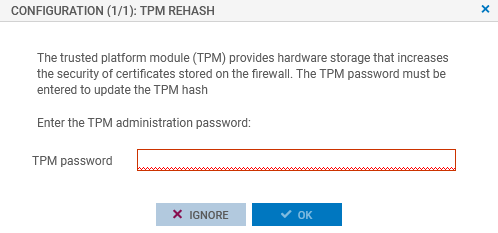
- Enter the TPM module administration password in the relevant field.
- Click on OK.
- If the SNS firewall is part of a high availability cluster, a second window prompts you to seal the TPM module of the passive firewall. Enter the TPM module administration password and click on OK.
From the CLI console
Seal the TPM on the SNS firewall with the command:
SYSTEM TPM PCRSEAL tpmpassword=<password>
Replace <password> with the TPM module administration password.
If the SNS firewall is part of a high availability cluster, seal the TPM on the passive firewall with the command:
SYSTEM TPM PCRSEAL tpmpassword=<password> serial=passive
You must protect the private keys of the certificates that you deleted before updating the SNS firewall BIOS by referring to the section Managing protection on private keys in SNS firewall certificates of the technical note Configuring the TPM and protecting private keys in SNS firewall certificates.