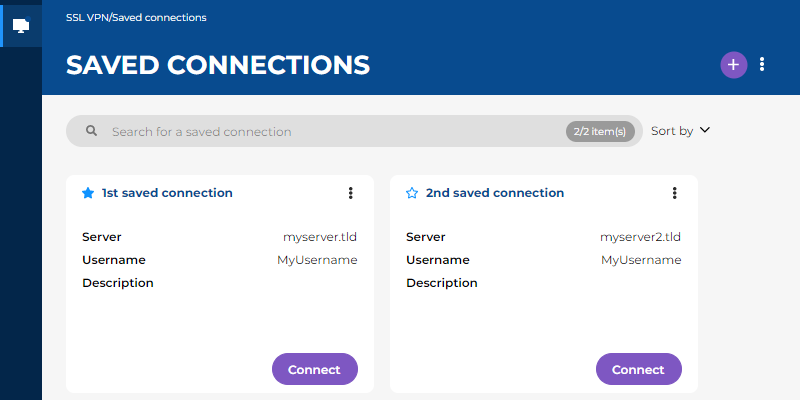
Overview of the graphical interface and menus of the Stormshield SSL VPN client
The Stormshield SSL VPN client has a graphical interface that makes it possible to set up secure connections, and to configure its settings.
Available languages
The Stormshield SSL VPN client is available in French and English. The language used depends on the language that was selected in the user's session settings. If the chosen language is not supported, the Stormshield SSL VPN client will use English by default.
Overview of the graphical interface
To open the Stormshield SSL VPN client graphical interface, click on the icon  in the system tray. In macOS and some Linux environments: click on the icon, and on Open.
The Stormshield SSL VPN client's graphical interface consists of:
- A general menu that can be accessed by scrolling over the
 icon in the shape of a monitor on the left,
 - A main window containing information on the selected menu.
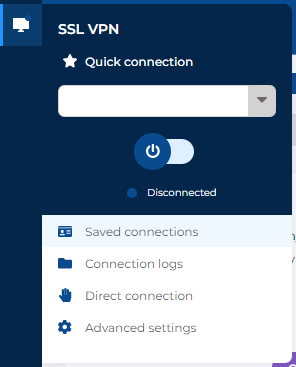
Overview of the general menu
To open the general menu of the graphical interface, scroll over the icon in the shape of a monitor on the left. When there is an open connection, a green dot appears in the icon  .
.
In the general menu, you can access the following menus:
-
Quick connection: makes it possible to set up a connection. To connect, select a favorite connection or the last connection used from the drop-down list, and click on the button
 . To disconnect, click on the button
  .
. - Saved connections: makes it possible to save connections and set up a saved connection,
- Connection logs: makes it possible to display connection events,
- Direct connection: makes it possible to set up a connection without saving information,
- Advanced settings: provides access to advanced parameters.
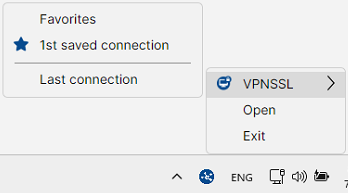
Overview of the pop-up menu
To open the Stormshield SSL VPN client pop-up menu, right-click on the icon in the system tray. When there is an open connection, the  icon will be green.
In the pop-up menu, you can access the following menus:
- SSLVPN: makes it possible to set up a connection. To connect, click on a favorite connection or the last connection used. To disconnect, click on Disconnect.
- Open: makes it possible to open the Stormshield SSL VPN client graphical interface,
- Exit: makes it possible to quit the application.
The screen capture below shows the pop-up menu in Windows. Visuals may vary according to the operating system used.