Configuring the authentication policy
This section explains how to configure the authentication policy in order to allow users or user groups to authenticate on the SNS firewall and set up SSL VPN tunnels.
-
Go to Configuration > Users > Authentication, Authentication policy tab.
-
Identify the Method to use if no rules match.
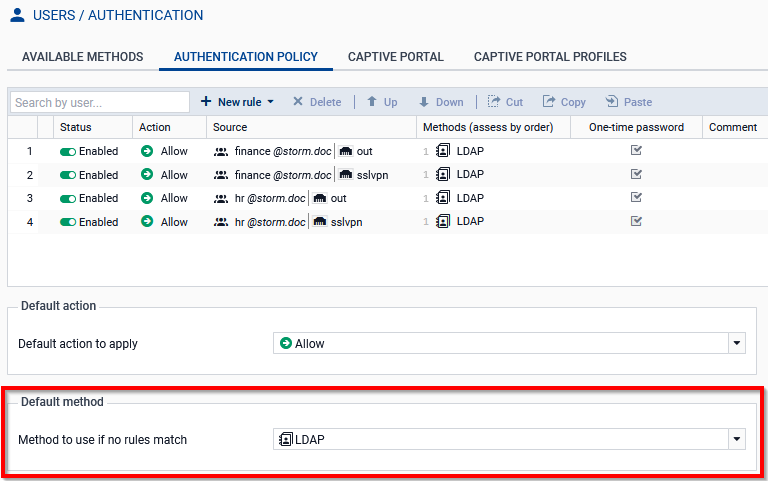
Proceed accordingly.
Case 1: The "LDAP" method is selected and only this method is used on the SNS firewall
The current configuration of the authentication policy will suffice. Continue to Configuring the captive portal.
Case 2: In all other cases
In all other cases (restricted only to authentication on the SNS firewall, use of multifactor authentication, etc.), you need to add at least two rules to the authentication policy to allow users to authenticate with the Stormshield SSL VPN client and set up SSL VPN tunnels.
For stronger security, we recommend creating these two rules for each user group that is setting up SSL VPN tunnels with the SNS firewall. However, you can also choose to create only two rules for all users, with no particular distinction.
The first rule allows users and Stormshield SSL VPN clients that are configured in Stormshield mode to connect to the SNS firewall's captive portal. Stormshield SSL VPN clients can then automatically retrieve the SSL VPN configuration, and send information that enables the SNS firewall to verify the client workstation's compliance (ZTNA).
-
Click on New rule > Standard rule.
-
In the User tab, select a user or user group from an SNS firewall directory (such as finance@domain.tld). If you wish to do so, select all the users in a directory by setting Any user@domain.tld. On SNS in version 5, you can also select all users from all SNS firewall directories by selected All users (any).
-
In the Source tab, add the source interface of SSL VPN connections (e.g. out).
-
In the Authentication methods tab:
-
Delete the Default method row.
-
Enable the method allowing users and Stormshield SSL VPN clients to connect to the SNS firewall's captive portal, e.g., LDAP or RADIUS.
-
If a multifactor authentication method is used (authentication with a one-time password), set the One-time password selector to ON
 .
.
-
-
Click on OK.
The second rule allows users to set up SSL VPN tunnels from their SSL VPN clients to the SNS firewall.
-
Click on New rule > Standard rule.
-
In the User tab, select the same user or user group as the one in the first rule.
-
In the Source tab, add the SSL VPN interface.
-
In the Authentication methods tab:
-
Delete the Default method row.
-
Enable the method allowing users to set up SSL VPN tunnels from their SSL VPN clients to the SNS firewall, e.g., LDAP or RADIUS.
-
If a multifactor authentication method is used (authentication with a one-time password), set the One-time password selector to ON
.
-
-
Click on OK.
NOTE
During an authentication on the SNS firewall, rules in the authentication policy are scanned in order of their appearance in the list.
