Configuring authentication with a user certificate
This section explains how to configure authentication with a user certificate to set up SSL VPN tunnels with the SNS firewall.
Requirements
- An SNS firewall in version 5.0.1 or higher.
- Stormshield SSL VPN clients in version 5.1.1 or higher. Do note that third-party SSL VPN clients, such as OpenVPN Connect, are not compatible.
- SSL VPN service configured in the SSL VPN module on the SNS firewall. This configuration is described in the following sections.
- SSL certificate method configured in Authentication > Available Methods on the SNS firewall. For more information, refer to the section Authentication > Available methods tab > Certificate (SSL) in the v4 user guide or v5 user guide, depending on the SNS version used.
- Rules created, allowing users to authenticate through the SSL Certificate method in the Authentication > Authentication Policy module on the SNS firewall. Adapt the information in the section Configuring the authentication policy in this case.
- User certificates installed on the workstations of the users in question. You can download the user identity of the certificate in P12 format in the Objects > Certificates and PKI module on the SNS firewall.
Setting up an SSL VPN tunnel by authenticating with a user certificate
In the Saved connections menu
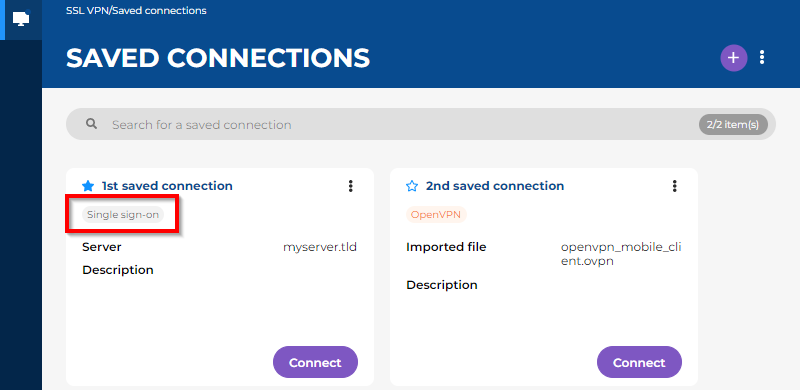
You must first select Stormshield mode and the checkbox Connect with single sign-on in the details of the saved connection.
In a saved connection, the label "Single sign-on" is an indication that the checkbox Connect with single sign-on was selected.
-
Click on Connect in the section of the saved connection in question.
-
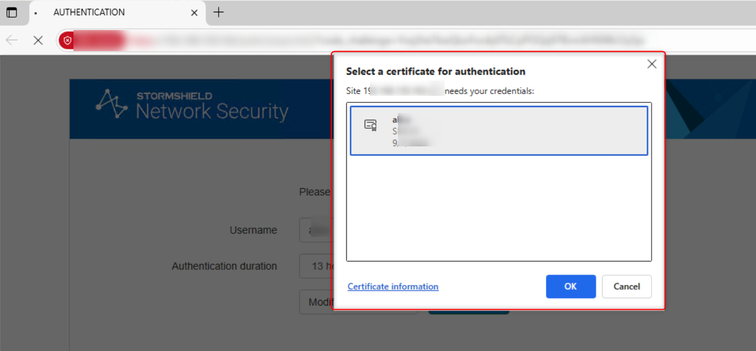
On the authentication portal that automatically opens in your web browser, follow the steps in the authentication process.
-
Wait while the Stormshield SSL VPN client sets up the SSL VPN tunnel.
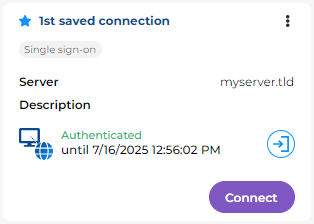
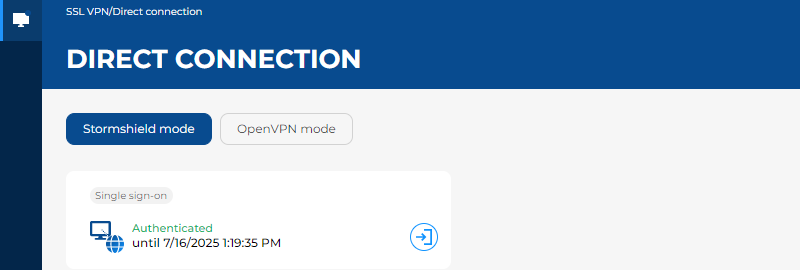
Once the SSL VPN tunnel has been set up, the expiry date of your authentication session appears. As long as the expiry date remains in the future, you can set up the SSL VPN tunnel without having to authenticate again.
In the Direct connection menu
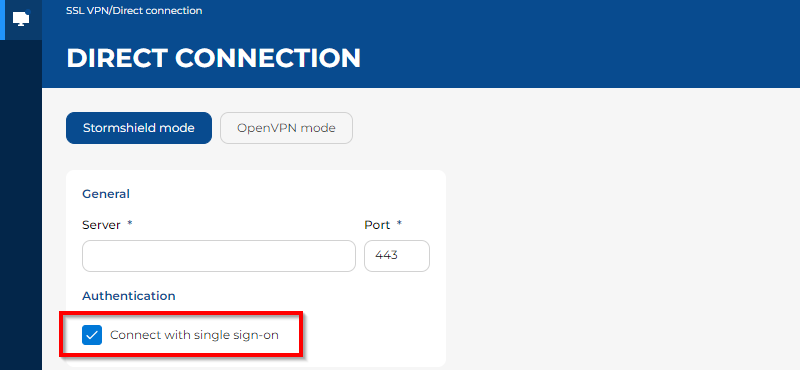
- Select Stormshield mode.
-
Select the checkbox Connect with single sign-on.
- Click on Connect.
-
On the authentication portal that automatically opens in your web browser, follow the steps in the authentication process.
-
Wait while the Stormshield SSL VPN client sets up the SSL VPN tunnel.
Once the SSL VPN tunnel has been set up, the expiry date of your authentication session appears. As long as the expiry date remains in the future, you can set up the SSL VPN tunnel without having to authenticate again.
Known limitations
TLS 1.3 incompatibility
With SNS version 5.0.2, authentication with user certificates is not supported over TLS 1.3. This limitation will be fixed in a future version of SNS.
Workarounds are available, depending on your users' web browser:
-
On Firefox, enable the following setting in the Firefox configuration:
security.tls.enable_post_handshake_auth
-
For other browsers such as Chrome or Edge, you need to force the SNS firewall's captive portal to use TLS 1.2. To do so, run the following SSH commands on the SNS firewall:
setconf /usr/Firewall/ConfigFiles/auth Config TLSv13 0
ensl
Entering the user name during authentication
Users currently have to enter their user names on the captive portal before they can select the certificate to be used for authentication. This limitation will be improved in a future version of SNS.