Templates tab
Several templates are available, each containing a body that differs according to the message that you wish to send out. This section allows you to use a customized message to send e-mails.
This screen consists of two zones:
- Templates on the left,
- The editing window on the right: subject and body of the e-mail.
Modifying a template (HTML)
Each template has some content called the “body” (like in an HTML page). This consists of unformatted text that may contain simple HTML markers that may finalize the formatting.
These templates can be modified and may contain variables, which will later be replaced with values. For example, a variable may automatically display the user’s name.
Do note that the language used for the mail subject and body is the language that is set in the Firewall language (logs) field in Configuration > General configuration tab.
To edit the contents of a template:
Select the template from the list on the left.
An edit window appears on the right.
Make the desired changes.
Two buttons allow you to:
- Preview the e-mail template,
- Send a test email.
If you do not want to keep the changes you have made, you can reset the template to its original layout, by clicking on the Apply default template button.
Default templates are categorized and listed below.
Certificate request
- Certificate request accepted.
- Certificate request denied.
User enrollment
- Request to enroll a new user.
- Enrollment request accepted.
- Enrollment request denied.
Sponsorship method
- Sponsorship request.
Variables that can be used in various templates
Variables that are the same across e-mail templates provided by default on the firewall:
| Variable | Meaning | E-mail template(s) in question |
| ${Lang} | E-mail language used | All |
| ${SystemNodeName} | Name of firewall system node, if any (firewalls in HA configuration) | All |
| ${Date} | Date on which the e-mail was created | All |
| ${LastName} | Last name of the requester | All |
| ${FirstName} | First name of the requester | All |
| ${URL} | URL to download certificate | Certificate request accepted |
| ${UID} | Requester ID |
Certificate request accepted Certificate request denied Enrollment request accepted |
| ${FirewallName} | Firewall name | Request to enroll a new user |
| ${UserIP} | IP address of the user workstation that initiated the request |
Request to enroll a new user Sponsorship request |
| ${FirewallFQDN} | Fully qualified name (DNS name) of the firewall | Sponsorship request |
| ${Time} | Sponsored session validity period | Sponsorship request |
| ${AcceptURL} | Sponsorship request acceptance URL | Sponsorship request |
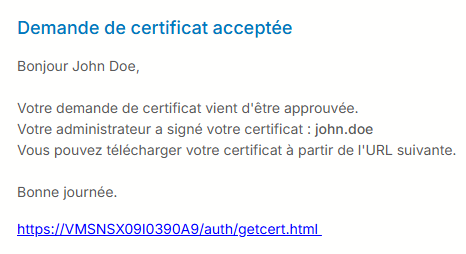
Example of a message received by e-mail when a certificate request is accepted