Preparing the USB flash drive
This section explains how to prepare the USB flash drive to update the TPM firmware.
Downloading the update archive
- In your Mystormshield area, go to Downloads > STORMSHIELD NETWORK SECURITY > TOOLS > STORMSHIELD NETWORK SECURITY - TOOLS.
- Download the update archive TPM Firmware Update Utility.zip by clicking on its name.
- Verify the integrity of the downloaded update archive TPM_Firmware_Update_Utility.zip using its SHA256 hash:
99e1bfb185d23655785f83f3a6030b322d31abe6f2cd569e5f71fd1550b9a149
Copying files to a USB drive
-
Unzip the update archive to the root folder of your USB flash drive.
-
Verify the contents of the root folder on the USB flash drive. You should find a folder and several files in it, including binaries and update tools.
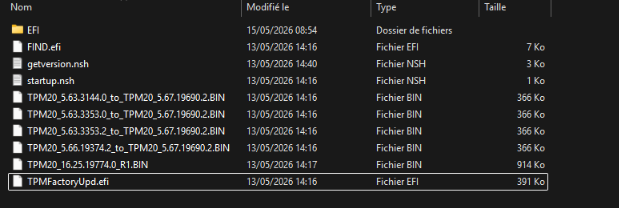
IMPORTANT
Keep all files on the USB drive: the update process will automatically determine which files to use when it runs. -
Verify the integrity of the update binary files by using their SHA256 hashes:
-
TPM20_16.25.19774.0_R1.BIN:
ef983e06e4d38cc0a550555204c4ab9874a17ccd87507d4412db9a8313392bd1
-
TPM20_5.66.19374.2_to_TPM20_5.67.19690.2.BIN:
44a39593eaaa9a2734f5b6e87e8c1267c3a641f0298e95e83c3485a5277320e0
-
TPM20_5.63.3353.2_to_TPM20_5.67.19690.2.BIN:
50720cb5c868184073aecedf67d0c9ca7fa8b6186c6bfb193b8fde7e879dd831
-
TPM20_5.63.3353.0_to_TPM20_5.67.19690.2.BIN:
8dab1c5374d60ae3448e7148d768f41fae6182d1f65cfe3e62448fb770df22e5
-
TPM20_5.63.3144.0_to_TPM20_5.67.19690.2.BIN:
543bee0e0076f94eb0c7a8ef43f57d6079c583cc2d6e422ea1a7ced31e8a7627
-
Your USB flash drive is ready to update the TPM firmware.