Creating the SNS PAYG virtual firewall template
Once the SNS PAYG firewall is initialized, you must create a template that you can duplicate later to create all your SNS PAYG virtual firewalls.
Configuring the firewall template
Edit the firewall’s configuration in order to create a template with a base configuration that will be the default configuration when you deploy clients. For example:
- Edit the default filter policy to adapt it to your needs,
- Enable the NTP service to synchronize the time on the firewall,
- Enable remote SSH access if you wish to manage the firewall via SSH.
This list is not exhaustive. Enable all the services that your clients will need.
Deleting OVF env parameters (VMware only)
If you are using OVF env (vApp) properties, you are advised to reset their values so that firewalls created from the template will not inherit these values.
- Open the vSphere client from your administration workstation.
- Select your PAYG virtual machine and click on the Configuration tab in the panel on the right.
- Select Settings > vApp Options. The OVF env parameters appear.
- Click on Edit and clear all the values in the Global configuration and Network interface parameters.
Creating a backup of the virtual machine
We recommend that you create a backup of the virtual machine to anticipate changes that may be made to the template, e.g., version updates or changes to its base configuration.
Converting the virtual machine to a PAYG template
Once you have finished configuring the virtual machine, you must convert it to a PAYG template
Converting the virtual machine to a PAYG template with a hypervisor
- Access the firewall's console via the hypervisor or via an SSH client.
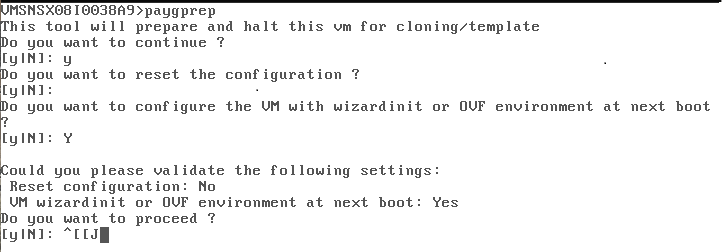
- Run the command paygprep.
You will be informed that the virtual machine will shut down at the end of the process. - When you see the question Do you want to continue?, answer y (Yes).
- When you see the question Do you want to reset the configuration?, answer n (No), unless you wish to use a default configuration.
- When you see the question Do you want to configure the VM with wizardinit or OVF environment at next boot?, answer y (Yes) if you wish to configure the network settings, host name, admin password and client ID of the new deployed machine when it boots.
The summary of the settings that you have just defined will appear. - When you see the question Do you want to continue?, answer y (Yes) if the information is correct.
The virtual machine will start shutting down.WARNING
The virtual PAYG machine will automatically be enrolled at the next startup. Do not start it until the process is complete. - In your hypervisor, right-click on your PAYG virtual machine, and select Template > Convert to template in vSphere or Convert to template in KVM. In Hyper-V, clone the virtual machine to create the template.
The virtual machine will be converted to the PAYG template. You can duplicate it whenever necessary.
Converting the virtual machine to a PAYG template in the Microsoft Azure cloud
- Access the firewall's console via an SSH client.
- Run the command waagent -deprovision.
- When you see the question Do you want to continue?, answer y (Yes).
IMPORTANT
The command waagent -deprovision will end the SSH connection. You can immediately log back in. - Run the command paygprep.
You will be informed that the virtual machine will shut down at the end of the process. - When you see the question Do you want to continue?, answer y (Yes).
- When you see the question Do you want to reset the configuration?, answer n (No), unless you wish to use a default configuration.
- When you see the question Do you want to configure the VM with wizardinit or OVF environment at next boot?, answer y (Yes) if you wish to configure the network settings, host name, admin password and client ID of the new deployed machine when it boots.
The summary of the settings that you have just defined will appear. - When you see the question Do you want to continue?, answer y (Yes) if the information is correct.
The virtual machine will start shutting down.WARNING
The virtual PAYG machine will automatically be enrolled at the next startup. Do not start it until the process is complete. -
Log in to the Microsoft Azure portal.
-
Open the Cloud Shell console by clicking on the icon in the upper bar.
-
Enter the following command to deallocate the virtual machine:
az vm deallocate -g <resource group> -n <virtual-machine-name>
-
In the Overview tab on the virtual machine, ensure that the Status is Stopped (deallocated).
-
Go back to the Azure console and enter the following command:
az vm generalize -g <resource group> -n <virtual-machine-name>
This makes it possible to delete specific information and create a template that can be easily reused.
-
In the Overview tab, click on Capture in the upper bar
-
In the Basics tab, fill in the fields as follows:
-
Project details section:
-
Share image to Azure compute gallery: yes, share it to a gallery as a VM image version,
-
-
Gallery details section:
-
Target Azure compute gallery: myGallery,
-
Operating system state: generalized,
-
-
Create a VM image definition section:
-
Publisher: stormshield,
-
Offer: stormshield-elastic-virtual-appliance,
-
SKU: byol-single-instance,
-
-
Version details section:
-
Version number: indicate the desired number.
-
-
-
Click on Review + create, then on Create.
-
Click on Go to resource to display the virtual machine image settings.