Create IPsec mobile peers
Microsoft Windows uses outdated encryption algorithms by default: these will be modified on workstations by following the procedure described in the section Edit encryption algorithms on client workstations in order to match the settings of the StrongEncryption profiles of the SNS firewall used in this document.
These parameters are as follows for phases 1 (IKE) and 2 (IPsec):
- Encryption algorithm: AES256-GCM,
- Hash: SHA256,
- DH group: DH19 NIST Elliptic Curve Group.
Create the IPsec profile
In the module Configuration > VPN > IPsec VPN, Peers tab.
- Click on Add.
- Select Mobile Client.
- Name your mobile configuration. In this example: mobile_IKEv2_EAPTLS.
- Select IKEv2 for the IKE version field.
- Select the StrongEncryption IKE profile.
- Click on Next.
- For Authentication Type, select EAP-Transport Layer Security (TLS), then click Next.
- In the Certificate to present field, select the certificate presented by the firewall to set up tunnels with these mobile peers. In this example: FW-EAPTLS.stormshield.eu.
- Click on Next then confirm by clicking on Finish.
- Click on Apply then on Save.
- Click on Yes, activate the policy.
The profile configured for IPsec mobile peers is therefore: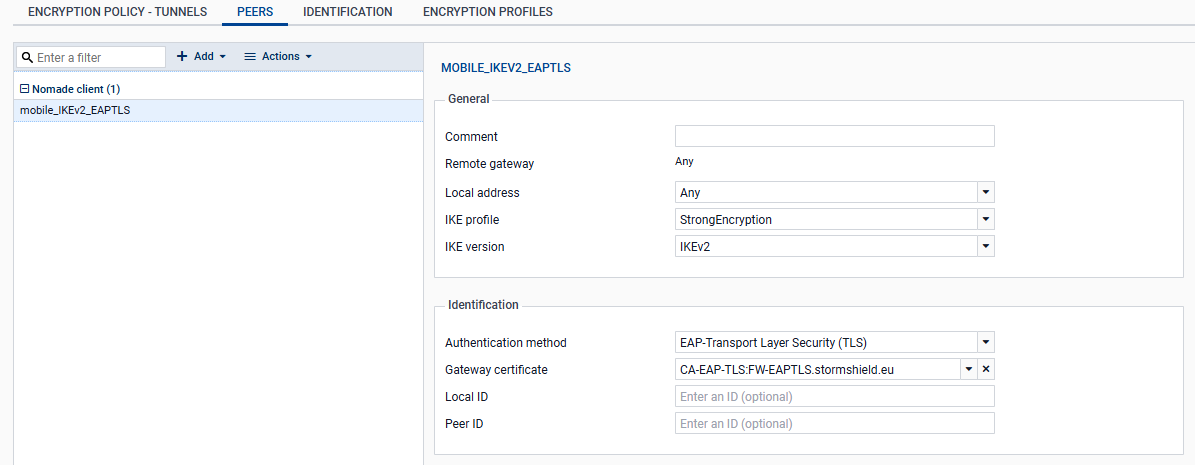
Add the CA that issued the certificates for mobile users in the trusted authorities
NOTE
If the CA was issued from an external PKI, its certificate will need to be imported in advance in the firewall’s Certificates and PKIs module.
In Configuration > VPN > IPsec VPN, Identification tab:
- In the Approved certification authority table, click on Add.
- Select the CA that issued the mobile user certificates. In this example: CA-EAP-TLS.
- Click on Apply, then on Save to save the changes.