License
To activate Cybels VPN, the administrator has to enter a valid license key, regardless of whether a Cybels VPN Essential or Cybels VPN Premium client is being configured.
Manual license configuration
In the Cybels VPN client interface, open the "General settings" menu and go to the License field to enter the key provided by your distributor.

Next, click on "Activate" to finalize the configuration of the Cybels VPN client license.
Managed license configuration
After you have exported the configuration, open the file with a text editor, then enter the key provided by your distributor in the "key" field.
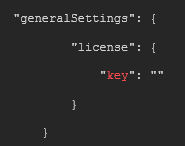
After you have saved your changes, import the new configuration, and then deploy it on the desired workstation(s) with the administration tool of your choice, an EMM or GPO.
Understanding Cybels VPN licensing
When a Cybels VPN application is purchased, the administrator receives a license key corresponding to the purchased version (Essential or Premium).
This key must be entered and activated as soon as possible after configuration (see above) and before the end of the period when the token is automatically released (after 90 days).
For 90 days from the installation of the VPN client on the workstation, and as long as a valid license key has not been entered, the VPN tunnel will automatically disconnect every 15 minutes.
In addition, a persistent message will be displayed indicating that the configuration is incomplete.

After this 90-day period, if no license key has been entered, or if an invalid license key has been entered, the license cannot be activated. The Cybels VPN application will then automatically generate a new 90-day token.