Verifying the DR mode compliance of an IPsec policy
Once it has been installed, SNS in version 5 and higher easily identifies the elements in the IPsec policy that are DR mode compliant, and on the other hand, those that require changes to their configuration in order to make them compliant.
Go to Configuration > VPN > IPsec VPN.
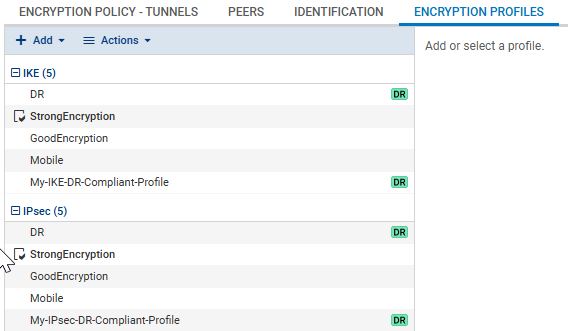
Encryption profiles tab
Two preset profiles, named DR, are suggested by default. The associated icon  indicates that these IKE and IPsec encryption profiles are DR mode compliant.
You can also add your own custom DR mode-compliant profiles, by cloning these preset DR profiles, for example. The icon will automatically appear next to these profiles.
Peers tab
- Select a peer.
- Under Advanced properties, select the DR compliant checkbox to highlight the peer settings that need to be modified in order to make the peer DR compliant.
Example 1: DR non-compliant peer.
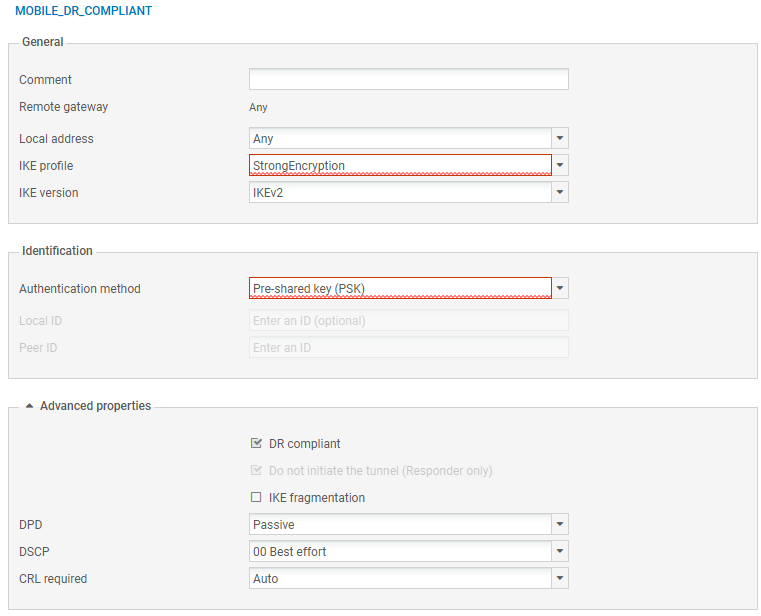
The settings that need to be changed are framed in red.
In this example, to make the peer DR compliant:
- Select an encryption profile that is DR compliant (preset DR profile or compliant custom profile),
- Change the authentication method to select certificate authentication.
Only DR-compliant choices are offered as alternative field values.
When a DR-compliant option is selected, other mandatory fields may be displayed as a result. For example, when the Pre-shared key (PSK) method is modified for the Certificate method, some of the mandatory fields associated with this authentication method are then highlighted:
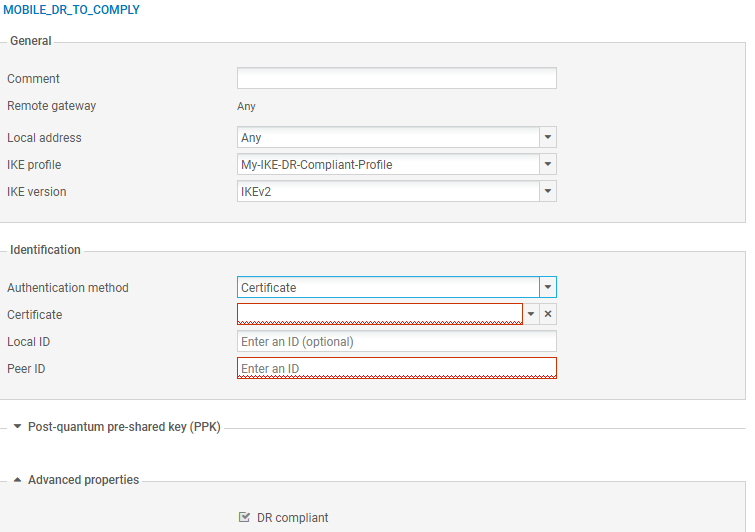
In this case:
- Select the certificate presented by the local firewall,
- Specify a Peer ID reflecting the FQDN found in the peer certificate.
Example 2: DR-compliant peer.
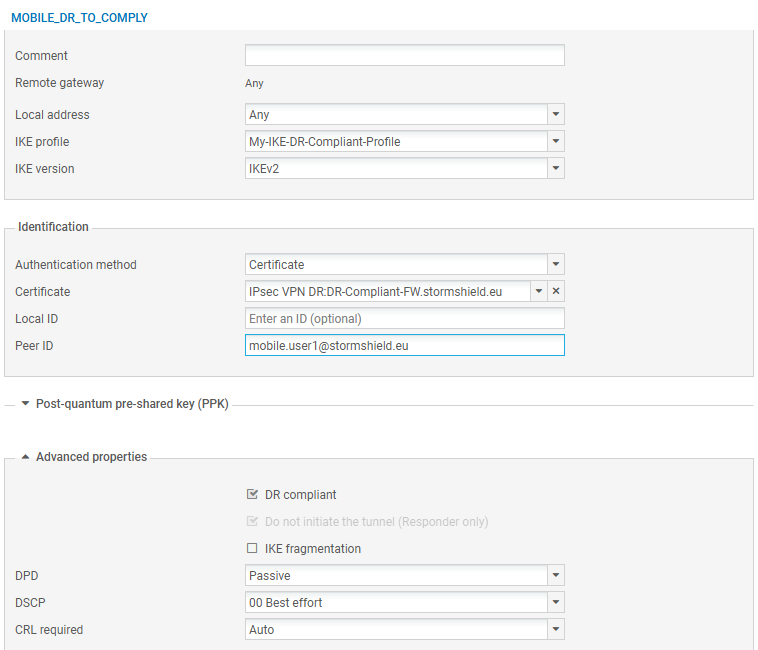
For this peer, no settings need to be changed.
Encryption policy – Tunnels tab
When a peer is DR compliant (DR compliant checkbox selected, and all peer settings are compliant), the icon appears before the IPsec rule associated with this peer.
