Updating BIOS and the Intel Management Engine firmware
This section describes the procedure of updating BIOS on an SN3100 firewall to version R1.06 in console mode by using a USB drive.
The update to version R1.06 is necessary in order for the firewall to be updated to version R2.30.
Connecting devices to the firewall
-
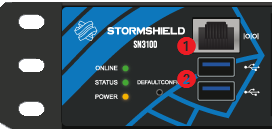
Connect the computer to the SNS firewall using an RJ45 to RS232 serial cable (provided with the firewall) and an RS232 to USB-A cable.
- or -
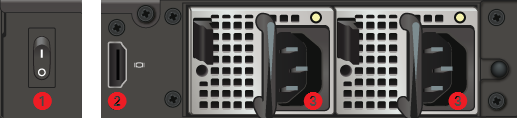
- Connect a USB keyboard and a monitor to the SNS firewall using an HDMI cable.
| Front panel | Rear panel |
|
|
|
|
1 : RJ45 serial port in console mode 2 : USB 3.0 port |
1 : On/off button 2 : HDMI port: for plugging in the monitor 3 : Mains sockets for redundant power supplies |
Disabling Secure Boot
The update procedure requires Secure Boot to be disabled so that the SNS firewall can start up on the USB drive that was prepared earlier. Secure Boot is disabled by default on SN3100 firewalls. If it had been enabled on your firewall, you need to disable it.
To disable Secure Boot, refer to the technical note Managing Secure Boot in SNS firewalls' UEFI.
Updating BIOS and the Intel Management Engine firmware
IMPORTANT
The update process is fully automatic and lasts around 10 minutes, during which the firewall will restart several times.
Once the process is run, it must never be interrupted, and the firewall must not be disconnected from the power supply. If this occurs, the SNS firewall will be completely unable to run.
- Insert the USB drive that was prepared earlier into a USB port on the firewall.
- As SN3100 firewalls have two internal power supply units to provide a redundant power supply, plug both power cords into the mains, and start the firewall by holding down its Power button located on the rear panel.
- During the startup sequence, press [Del] several times to stop it, and access BIOS.
- Go to the Main tab and check the BIOS version, which should be R1.04.
- Go to the tab Chipset > System Agent (SA) Configuration and change the BIOS Lock setting to Disabled.
-
Press [F4] to save and quit BIOS. The firewall will automatically restart on the USB drive, and the update will run automatically:
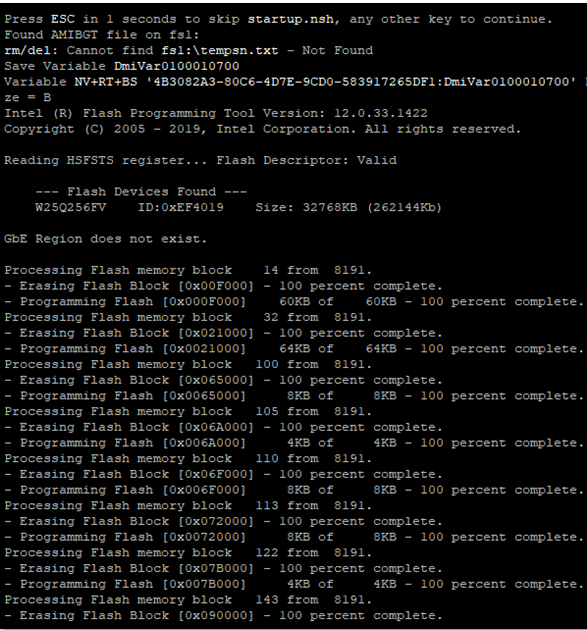
When the update process ends, the firewall will shut down.
- Unplug the USB drive from the SNS firewall.
The firewall BIOS is now in version R1.06. Follow the procedure to update BIOS to version R2.30.