Protecting access to saved connections with a password
Protecting access to saved connections
If you are protecting access to saved connections, you must enter the access password the first time that the Stormshield SSL VPN client accesses these connections after startup (when saved connections are displayed, or when a saved connection is being set up with the auto login option enabled).
-
Click on the
 button at the top right, then click on Protect.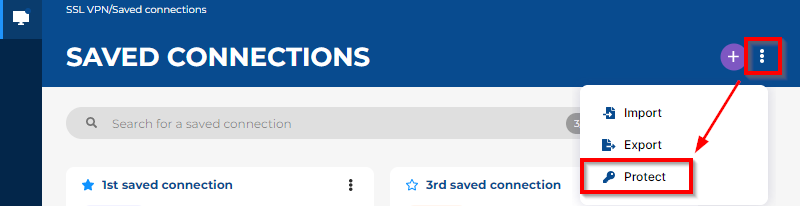
- Enable the parameter Enable password protection
 .
. -
Set the access password, and confirm it. Keep the password in a safe and protected location. Stormshield will not be able to help you recover your password if you misplace it.
- Click on Change password.
Changing the access password
-
Click on the
button at the top to the right, then click on Change password.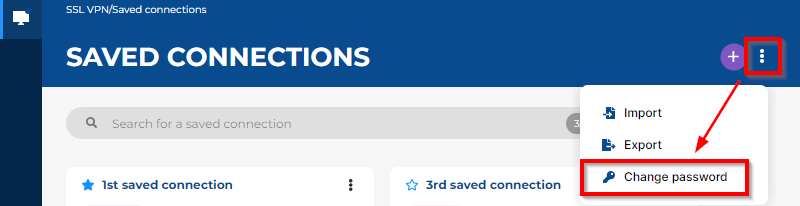
- Enter the current access password.
-
Set the new access password, and confirm it. Keep the password in a safe and protected location. Stormshield will not be able to help you recover your password if you misplace it.
- Click on Change password.
Removing protection
-
Click on the
button at the top to the right, then click on Change password.
- Disable the parameter Enable password protection
 .
. - Enter the access password.
- Click on Disable protection.
If the access password is misplaced
You will not be able to reset the access password, and Stormshield is not in a position to recover it. As a last resort, you need to delete the file containing the saved connections, which can be found in a folder at the following location:
-
In Windows:
C:\ProgramData\Stormshield\SSL VPN Client\Addressbooks\
-
In macOS:
/Library/Application Support/Stormshield/SSL VPN Client/Addressbooks/
-
In Linux:
/var/lib/stormshield/sslvpnclient/addressbooks/
You must already hold the required permissions on the workstation to access the folder. If you need assistance, get in touch with an administrator from your organization.
In this folder, if only one sub-folder exists, this means that only one user on the workstation has added saved connections. If there are several sub-folders, you need to identify the sub-folder of the user in question:
- In macOS and Linux, the name of each sub-folder corresponds to the ID of a user on the workstation.
- In Windows, the name of each sub-folder corresponds to an internal Windows ID that does not contain any information identifying the user. You can use the dates of the last modification to find the user in question.
When you are ready, quit the Stormshield SSL VPN client, delete the sub-folder, and start the Stormshield SSL VPN client. The user can then add or import saved connections once again.