Preparing the USB flash drive
This section describes the procedure of preparing the USB drive that will be used in updating BIOS on SN-L-Series (SN-L-Series-2200 and SN-L-Series-3200) model firewalls.
Downloading BIOS version R1.07 and copying it to the USB flash drive
- In your Mystormshield area, go to Downloads > STORMSHIELD NETWORK SECURITY > TOOLS > STORMSHIELD NETWORK SECURITY - TOOLS.
- Download the .zip file SN-L-Series_BIOS_R107 by clicking on its name.
-
Verify the integrity of the downloaded .zip file by using its SHA256 hash:
c8a2a1678aca679559945432f72e6e74704b75f1121f1f19513a5033295f9d6c
- Unzip the archive SN-L-Series_BIOS_R107.zip to the root folder of your USB flash drive.
-
Verify the root folder of the USB flash drive. You should find the folder and the following files in it:
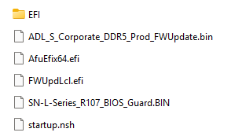
-
Verify the integrity of the file SN-L-Series__R107_BIOS_Guard.BIN using its SHA256 hash:
f5b8a63ee3b7204ef0127611c84e6f801f7c423c1f191b238d73d08b9a06ac5e
-
Verify the integrity of the file ADL_S_Corporate_DDR5_Prod_FWUpdate.bin using its SHA256 hash:
4229ac8130558858e2b52afaed2990bf3d6955b017130edcfebb66cb74d33398
The USB flash drive containing the BIOS update and Intel Management Engine firmware is ready.